Multi-Tier Order Approval

Introduction
The multi-tier order approval process enables collaborative approval workflows for orders involving multiple partners in a contract chain. This feature ensures that orders are completed only after all required approvals are obtained from participating partners.
Select partners can use the multi-tier order approval feature to control, review, and approve orders in a multi-partner setup. This capability is particularly valuable when multiple partners in a service supply chain depend on each other for providing services and products to their customers, as reviewing and approving customer orders provides partners with enhanced financial control.
In this article:
Prerequisites
To utilize the multi-tier order approval feature, the following requirements must be met:
- Partner-specific feature activation (this feature must be enabled for your organization)
- Active Platform account with Seller admin permissions
- Access to API and details related to the API endpoint and API calls for this feature
- Access to the Platform Settings window with the Credit Risk tab
Overview of the multi-tier order approval process
The approval process in the multi-tier order setup begins when a Customer or Seller creates a new order or modifies an existing Subscription.
Approval workflow
When a Customer or Seller places an order, the following process occurs:
- The order receives the Pending Approval status, which remains until all approving partners approve the order
- Depending on the configuration, the Platform sends an approval webhook to the approving partners (Distributors and Sellers)
- Each approving Partner in the chain reviews the webhook containing order details (learn more about webhook configuration in the article: Webhooks guide for Partner)
- Approving partners respond to the notification through the Order API by either approving or rejecting the order
- If any approving Partner rejects the order, it cannot be completed and the Customer receives a rejection message
- If all partners approve the order, the Product is provisioned
- A new Subscription is created (or the existing Subscription is updated) for the Customer
- When the provisioning process is successful, the Platform sends a webhook notifying the approving partners with the details of the final order
Multi-tier order approval flow diagram
The process follows these decision points:
- Customer or Seller places order → Order receives Pending Approval status
- Platform sends order approval webhook → Approving partners review webhook
- Approving partners respond through the Order API
- Rejection path: Order rejected → Customer receives rejection message
- Approval path: All partners approve → Product provisioned → Subscription created or updated
- Provisioning success check:
- Yes: Platform sends final order webhook to approving partners
- No: Provisioning failed → Approving partners are notified
Multi-tier order approval configuration
The options related to the multi-tier order approval process are located under the Credit Risk tab in the Currency & Payments section of Settings.
Accessing the Credit Limit tab
Navigate to Settings → Currency & Payments → Credit Risk tab.
The Credit Limit section allows you to manage credit risk and order approval settings.
Under this tab, you can access information related to:
- Credit risk group management
- Credit risk group details
- Organizations management
- Policy configuration
- Order approval process
Credit risk group management
Under the Manage Credit Limit button, you can view a table listing credit risk groups.
Credit risk group table columns
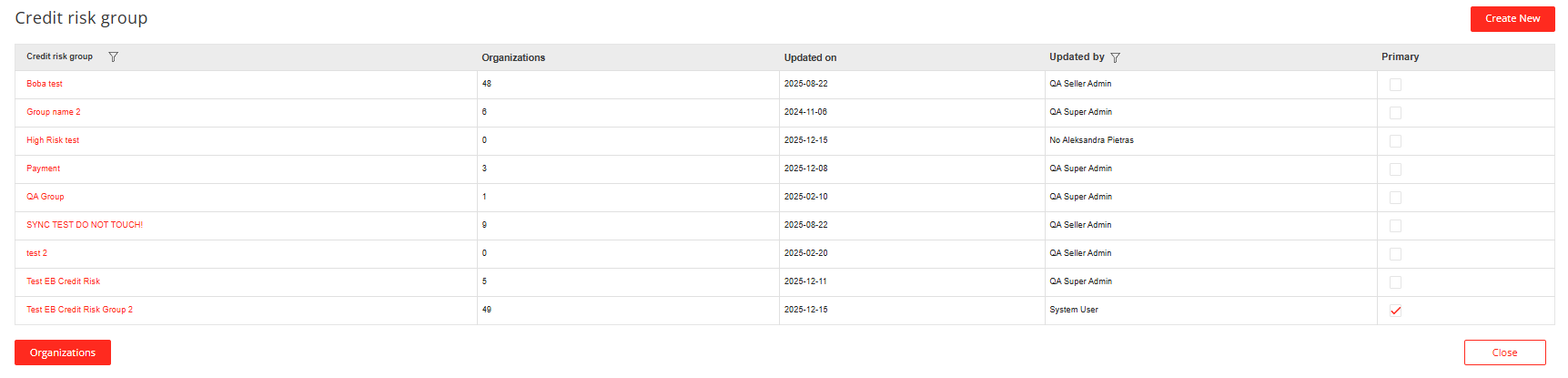
The table contains the following columns:
- Credit risk group – The name of a specific credit risk group
- Organizations – The number of organizations within each credit risk group
- Updated on – The date when the credit risk group was last modified
- Updated by – The name of the person who last modified the group
-
Primary – Indicates if a credit risk group is set as the primary credit risk group (only one group can be set as primary at a time)
Creating a new credit risk group
To create a new credit risk group:
- Click the Create New Group button
-
Define the Name of the new group
- Save your changes by clicking Confirm
Credit risk group details
Clicking on a specific credit risk group opens its detailed view.
Scope page components
The detailed view of a credit risk group in Scope tab includes:
- Policy scope – A list of policies within the selected credit risk group, allowing sorting based on the control level of Offers
- Created on – The date when a specific policy was created
Create New
-
Create New Group button – Allows you to create a new credit risk group settings for the Credit Risk group you entered
- New pop-up is displayed, where you can define the Vendor and Offers for which Multi-Tier Approval process will apply.
-
Confirm your settings
Organizations management
On the Organizations management page, you can select a specific Organization to view organizations assigned to a specific risk group.
You can also add more Organizations to the given Credit Risk group by clicking Add Organization button.
You can select an Organization from the dropdown list by scrolling it or by searching via the search bar
Organizations management table columns
The table contains the following columns:
| Column | Description |
|---|---|
| Status | Indicates if an Organization is active or inactive |
| Organization | The name of an Organization (this column can be used to sort and filter the table) |
| External ID | The ERP (Enterprise Resource Planning) ID number of an Organization |
| Country | The country in which the Organization is located |
| Tier | Indicates if the Organization is Direct Model or Indirect Model |
| Credit Risk Group | Displays information about the assigned credit risk group (you can change or remove it directly from the table) |
Organization assignment restrictions
Some statuses restrict the possibility of adding an Organization to a credit risk group. For example, if an Organization is marked as Suspended or Blocked, you cannot add it to a credit risk group. For organizations with such statuses, you will see an inactive button and a tooltip explaining why you cannot add that specific Organization to a credit risk group.
Policy configuration
You can add a new policy in a credit risk group by selecting a specific Vendor or all Vendors.
When you choose a specific Vendor, you can narrow the scope to specific Offers. This allows you to manage risk by evaluating individual Products and groups when you select multiple Offers for a single Vendor.
Order approval process
The Orders tab displays which orders are approved and which are still pending approval.
- Approved orders trigger the service provisioning process
- Pending orders are paused and remain in the Pending Approval status
When Multi-Tier order Approval is properly configured, you can send notifications to let all approving partners know that an order has been placed by an entity in a specific credit risk group. For more information regarding the notification and webhook see the article: Order Notifications - Orders - pending approval / OrderPendingApproval
Use cases
There are three main distribution models (or distribution use cases):
- 2-Tier Distribution Model
- 1-Tier Distribution Model
- Hybrid Distribution Model
2-Tier Distribution Model
In this model, a Distributor manages credit risk for second-tier Sellers.
Workflow:
- Distributor A creates a Credit Risk Group (for example, 'CR-A') on their own Platform to manage and monitor credit risk at the distributor level
- Distributor A adds Second-Tier Seller B to 'CR-A' and defines the specific credit risk scope for this Seller
- Customer B, on Platform B (managed by Second-Tier Seller B), places an order
- The order triggers an approval flow based on the Credit Risk Group 'CR-A'
- The order goes into the Pending Approval status
- Distributor A receives a Pending Approval webhook with details of the credit risk amount specific to the distributor level
- Distributor A reviews and approves the order through the approval API
- After approval, the order goes through the standard order completion process
- Once the order item is provisioned, Distributor A receives an OfferProvisioned webhook as confirmation
- The implementation is triggered to get the final credit risk assessment for the order item (specific to Distributor A's credit risk level)
1-Tier Distribution Model
In this model, a first-tier Seller manages credit risk directly for their Customers.
Workflow:
- First-Tier Seller C creates a risk group (for example, 'CR-C') on their Platform to track and manage credit risk for their Customers
- First-Tier Seller C adds Customer C to this group and sets specific credit risk limits for them
- Customer C places an order on Platform C, which First-Tier Seller C manages
- The order goes through the approval process based on the 'CR-C' rules and is marked as Pending Approval
- First-Tier Seller C receives notification about the Pending Approval status, which includes the credit risk amount for review
- First-Tier Seller C reviews and approves (or rejects) the order through this custom implementation
- Once approved, the order goes through the standard approval steps
- After the order is set up, First-Tier Seller C receives a notification that the Offer has been provisioned
- The implementation makes a final check to confirm the credit risk for the completed order at First-Tier Seller C's level
Hybrid Distribution Model
In this model, both Distributors and second-tier Sellers manage credit risk at their respective levels.
Workflow:
- Distributor A creates a Credit Risk Group (for example, 'CR-A') on their Platform A
- Second-Tier Seller B (a Seller associated with Distributor A) creates their own Credit Risk Group (for example, 'CR-B') on their Platform B
- Distributor A adds Seller B to the 'CR-A' group and defines the scope of credit risk management
- Seller B adds Customer B to the 'CR-B' group and defines the scope of credit risk management
- Customer B places an order on Platform B that is associated with Seller B
- The order goes to the approval process and is pending approval based on the credit risk settings of both 'CR-A' and 'CR-B'
- Distributor A receives a pending approval notification (webhook) with the credit risk amount at Distributor A's level
- Second-Tier Seller B also receives a pending approval notification (webhook) with the credit risk amount at their own level
- Distributor A approves the order using the approval API
- Seller B also approves the order using the approval API
- The order goes through the regular order processing steps
- Once the order item is provisioned, Distributor A receives an OfferProvisioned notification (webhook)
- The implementation triggers an API call to get the credit risk details for each order item at Distributor A's level
- After provisioning, Seller B receives an OfferProvisioned notification
- The implementation triggers another API call to get the credit risk details for the order item at Seller B's level
Additional information
Primary credit risk group warnings
Setting a primary group displays a warning informing users that newly added organizations are by default added to that primary group. If you attempt to remove the primary group, you will see a warning message stating that organizations assigned to that primary group will become unassigned.
Integration with Prorated Calculation
Some changes to an order may trigger Multi-Tier Order Approval. This process is also used as part of Prorated Calculation, which helps manage credit risk.
Prorated Calculation works by calculating the total term amount when managing credit risk. It allows you to calculate and verify the order amount required from Customers to cover the Subscription term.
Learn more about this functionality in the article: Prorated Calculation.
Summary
If you are a Partner who has this feature enabled, you can access the multi-tier order approval feature under the Credit Risk tab. The feature provides options to manage credit limits, manage credit risk groups, assign organizations to them, configure policies, and determine an order approval process suitable for your setup. The webhook notification system ensures that all approving partners receive timely notifications about orders requiring approval, enabling efficient multi-tier approval workflows.
Add comment
Please sign in to leave a comment.