How to create and execute orders using Order API

Introduction
This article guides you through creating and executing orders using the Order API version 3.1. You will learn how to add products to a cart, place orders, and manage order statuses through API calls. This guide is intended for developers integrating with the platform APIs.
In this article:
- Prerequisites
- API authentication and headers
- Create an order (add to cart)
- Execute an order (place order)
- Retrieve order information
- Understanding order provisioning
- Cancel an order item
Prerequisites
Before using the Order API, ensure you have:
- Access to the API documentation portal
- A valid subscription key from the Portal
- Client ID and Client Secret with appropriate permissions
- Active reseller portal and user account
API authentication and headers
All API calls require the following headers:
Required headers
Referer: The Platform URL where you are making the purchase (your portal URL)
Ocp-Apim-Subscription-Key: Your subscription key from the portal (click "Show" to reveal and copy)
api-version: Use "3.1" for the latest Order API version
X-On-Behalf-Of: The Organization ID where the order will be placed
Finding the organization ID
The Organization ID (X-On-Behalf-Of value) can be found by:
- Navigate to "Organization" in the portal
- Select "Select organization"
- Choose your target organization and click on "Profile"
-
Copy Organization ID from Basic Details section
- Use the Organization ID as a X-On-Behalf-Of value
Create an order (add to cart)
Creating an order adds products to a shopping cart without placing the order. This is the first step in the order process.
Endpoint
POST https://api.appxite.com/orders/
Required information
Offer ID: The ID of the Product you want to order. This should be stored in your system when you retrieve available products.
Order Item ID: A unique identifier you generate for this order item. Generate a new ID for each cart addition.
Form Data: Configuration details for the product, including:
- Billing Cycle (e.g., "annual", "monthly")
- Quantity
- Data center location (use location ID, not string)
- Commitment Period
- License tier (if applicable)
Obtaining form data keys
Form data keys are not visible in the user interface. To discover them:
- Add a product to cart through the portal interface
- Open browser developer tools (F12)
- Navigate to the Network tab
- Inspect the API call made when adding to cart
- Examine the "form_data" object in the request payload (copy OrderDetails and extract only "Form data")
- Use these exact key names in your API calls
Example form data structure
"FormData": {
        "quantityBox1": 1,
        "ChargePeriod": {
          "offerId": "3d800b57-0958-4d86-a6a6-144243908f4f",
          "offerRulePricingId": "57066ba2-04e7-4610-8517-cff8d1953104",
          "pricingFrequency": "Monthly",
          "offerRuleFrequency": "Monthly",
          "offerRuleCustomFrequencyMonths": 1
        }
Response
The response contains:
- Order ID (generated by the system)
- Order Item ID (your generated ID)
- Available operations you can perform (place_order, delete, update, schedule_order, create_quote)
- Form data confirmation
Example API call and its response
Headers:
Body:
Response:
Execute an order (place order)
After adding products to the cart, you must execute the order to submit it for provisioning.
Endpoint
POST https://api.appxite.com/orders/operation
Required headers
Use the same headers as create/execute operations:
- Referer
- Ocp-Apim-Subscription-Key
- api-version
- X-On-Behalf-Of
Required information
Order ID: From the create order response
Offer ID: The same Offer ID used when creating the order
Order Item ID: The same Order Item ID used when creating the order
Form Data: The same form data used when creating the order
Set of Operations: Include the "place_order" operation from the create order response
Process flow
- Copy the Order ID from the create order response
- Use the same Offer ID and Order Item ID
- Include the place_order operation
- Submit the execute order request
- The order moves from cart to the orders page
- Provisioning begins automatically
Example API call and its response
Body
Response
Retrieve order information
To check order status and details, use the retrieve order endpoint.
Endpoint
GET https://api.appxite.com/orders/{orderId}
Required headers
Use the same headers as create/execute operations:
- Referer
- Ocp-Apim-Subscription-Key
- api-version
- X-On-Behalf-Of
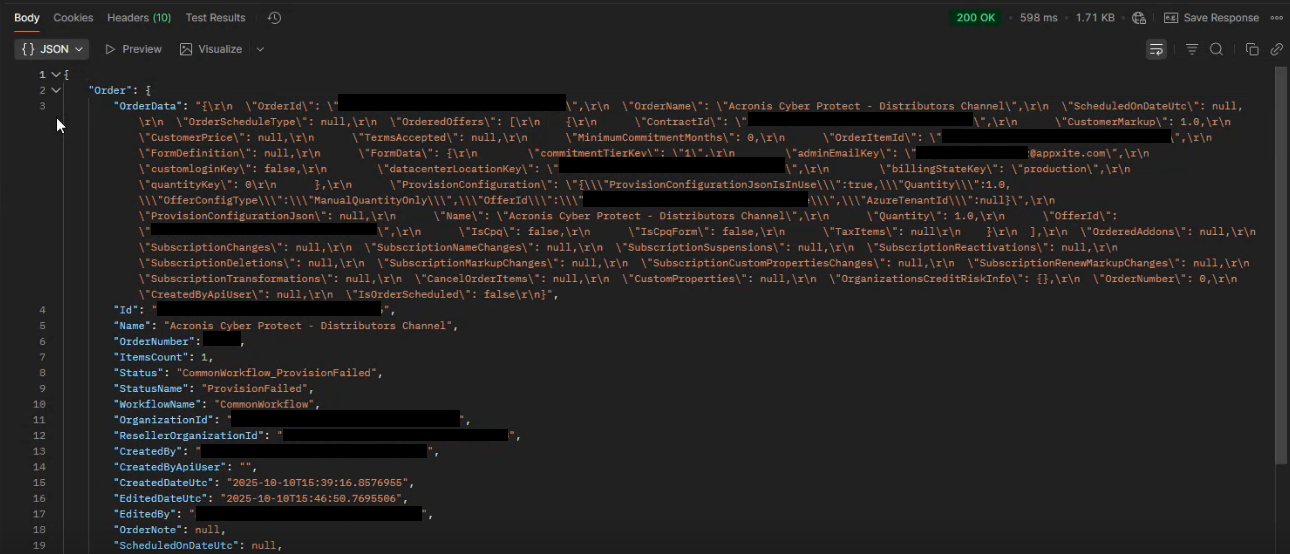
Response information
The response includes:
- Order Status (provision_started, provision_finished, provision_failed)
- Order item details
- Form data
- Available operations
Use this endpoint to poll for order status updates after placing an order.
Example API call response
Understanding order provisioning
After executing an order, the Platform handles provisioning automatically.
Provisioning process
- Order is submitted via execute API call
- Platform initiates external communication with the Vendor (Microsoft, IBM, etc.)
- Order Status updates based on vendor response
- Final status: provision_finished (success) or provision_failed (failure)
Provisioning statuses
provision_started: Order submitted to vendor, processing in progress
provision_finished: Order successfully provisioned
provision_failed: Order failed during provisioning
Manual approval scenarios
Some offers require manual approval:
- Custom integration offers without API automation
- Offers configured for manual processing
For manually configured offers, a user must approve the order in the portal even when created via API.
Cancel an order item
Cancellation disables a Subscription without deleting it from the system.
Prerequisites for cancellation
The order item must have status "provision_finished" before you can cancel it. Items that failed provisioning or are still processing cannot be cancelled.
Endpoint
POST https://api.appxite.com/orders/cancel?orderitemid={orderItemId}
Required information
Order Item ID: The ID of the order item to cancel
Include the same headers as other operations.
Cancellation limitations
You cannot cancel an order that:
- Is still in cart (not executed)
- Has status provision_started or provision_failed
- Has already been cancelled
Summary
The Order API provides a two-step process for creating and executing orders. First, add products to a cart using the create order endpoint with proper form data. Then, execute the order using the place order operation. Monitor order status using the retrieve order endpoint. Remember that cancellation only disables subscriptions without deleting them, and some offers may require manual approval even when created via API.
For additional assistance, contact support at support@appxite.com
Add comment
Please sign in to leave a comment.