How to monitor automatic sending of sales documents in Business Central

Introduction
This article guides you through monitoring the automatic sending of sales documents in the Business Central. You'll learn how to check the status of the Email Sales Documents job, troubleshoot errors, and analyze sending history through Email Logs and Sent Emails pages.
In this article:
The Email Sales Documents job automatically sends sales documents to customers at scheduled times. Regular monitoring ensures documents are delivered reliably and any issues are quickly identified and resolved.
Monitor Email Sales Documents job
To check the job status:
- Open the Job Queue Entries page and locate the Email Sales Documents job.
- Verify the status shows as Ready.
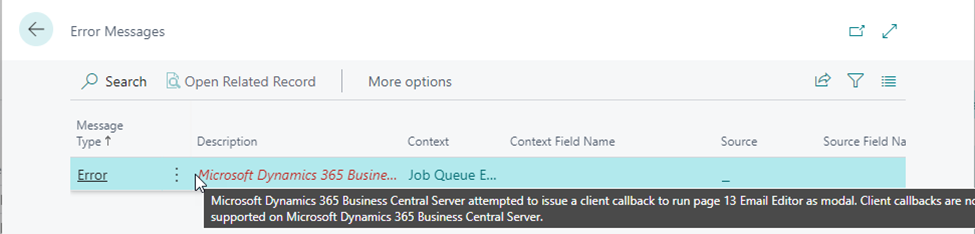
- If the status displays as Error, investigate by clicking the Show Error action to view error details.
To restart the job after an error:
- Set the job status to On Hold.
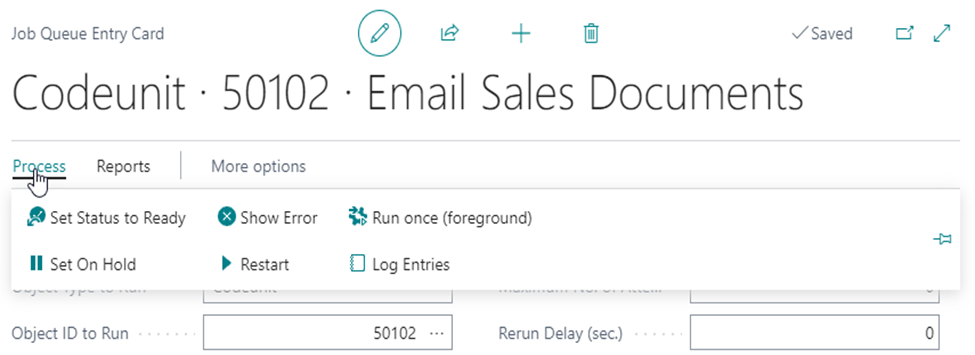
- Click on the job status to open the Codeunit • 50102 • Email Sales Documents job card.
- Set the Earliest Start Date/Time field to the next day at 01:00.
- Navigate to Process and select Set Status to Ready action to restart the job.
Analyze automatic sending history
To review email logs:
- Open the Sales & Receivables Setup page.
- Navigate to Related and select Email Logs action.
- On the Email Log Headers page, review the results of the Email Sales Documents job runs.
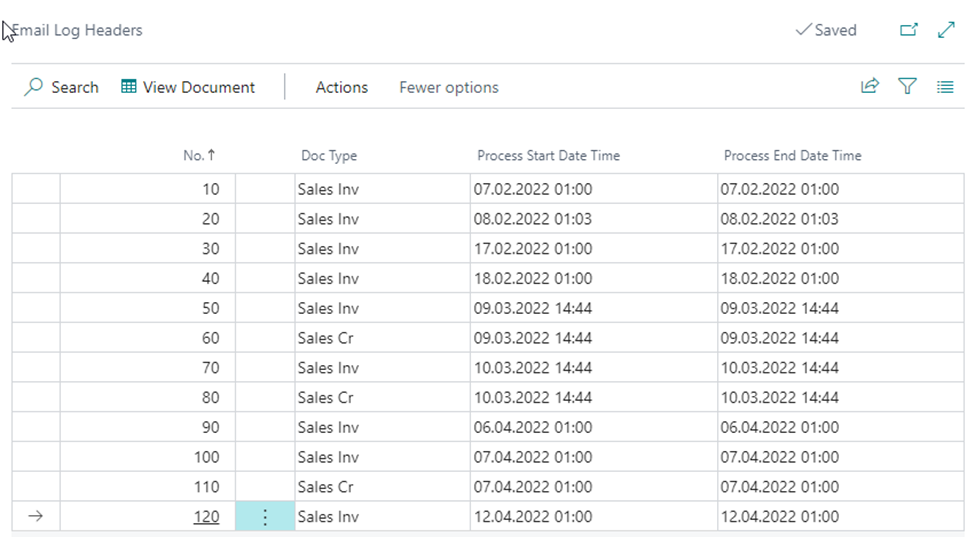
- Select the desired date entry and click View Document action.
- In the opened Email Log Document page, verify whether the document was sent via the automatic sending job.
To review all sent messages:
- Navigate to the Sent Emails page to view all messages, both automatic and manual.
- If you are the sender of a message, click on the Description field to open and review the sent message details.
Summary
Monitoring the automatic sending of sales documents involves checking the Email Sales Documents job status in Job Queue Entries and analyzing sending history through Email Logs and Sent Emails pages. Regular monitoring helps identify and resolve issues quickly, ensuring reliable document delivery to customers.
Was this article helpful?
Articles in this section
- Handling errors in Business Central
- How to add a new Vendor in the Resource Groups list in Business Central
- How to assign users with Email Policies on Business Central
- How to automate Customer onboarding in Business Central
- How to brand the Organization in Business Central
- How to change the Distributor's company address in Business Central
- How to correct a Business Central invoice with incorrect tax for tax-exempt sellers
- How to fix invoice Posting Date in Business Central
- How to fix Posted Sales Invoice numbering issue in Business Central
- How to monitor automatic sending of sales documents in Business Central
Add comment
Please sign in to leave a comment.