How to re-post Business Central invoices

Introduction
This article guides you through the process of re-posting invoices in Business Central. Re-posting becomes necessary when you need to correct or update previously posted sales or purchase invoices. The procedure involves creating a credit memo for the original invoice, modifying the billing header status, and processing the corrected document through the system.
In this article:
- Create a credit memo for the original invoice
- Modify the billing header status
- Process and post the corrected invoice
Re-posting invoices in Business Central requires a systematic approach to maintain accurate financial records. The process ensures that the original invoice is properly credited before creating a new, corrected version.
Create a credit memo for the original invoice
Before re-posting an invoice, you must first credit the original document to zero out the remaining amount.
Navigate to posted Sales Invoices or posted Purchase Invoices depending on the invoice type you need to re-post. Locate and select the invoice that requires correction. Click on Create Corrective Credit Memo to generate a credit memo for the selected invoice.
For Purchase Invoices only, you need to enter any value in the Vendor Cr. Memo No. field. This step is not required for sales invoices.
Click Posting / Post to post the credit memo. Once posted, verify that the Remaining Amount column shows a value of 0, confirming that the original invoice has been fully credited.
Modify the billing header status
After crediting the original invoice, you need to modify the billing header to prepare for re-posting.
Go to Sales & Receivables / Process/Billing Headers. Click on EDIT LIST to make the list editable if it is not already active. Locate the relevant invoice in the billing headers list.
Change the invoice status to NEW in the status column. This resets the invoice processing state. Delete the invoice number in the NAV DOC No column to clear the previous document reference.
Process and post the corrected invoice
With the billing header modified, you can now process and post the corrected invoice.
Click Process Documents. The system will display a message indicating that the purchase invoice with the same platform number already exists. This is expected behavior.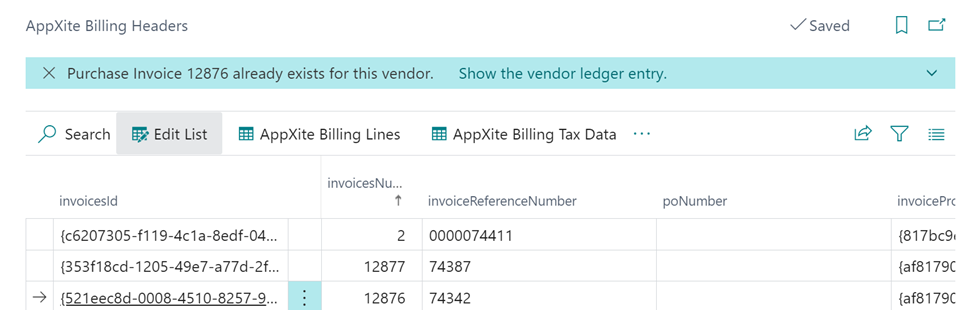
From the NAV DOC No column, click on the three dots menu to access the invoice details. Edit the purchase invoice number in the Vendor Invoice no. field by adding a letter or another symbol to the existing number. This creates a unique identifier for the new invoice while maintaining traceability to the original.
Click Post Documents to complete the re-posting process. The system will generate new purchase and sales invoices with the corrected information.
Summary
Re-posting Business Central invoices involves a three-step process: crediting the original invoice through a corrective credit memo, modifying the billing header status to NEW and clearing the document number, and processing the corrected invoice with a modified identifier. This procedure ensures accurate financial records while maintaining audit trails for all invoice corrections.
Was this article helpful?
Articles in this section
- Handling errors in Business Central
- How to add a new Vendor in the Resource Groups list in Business Central
- How to assign users with Email Policies on Business Central
- How to automate Customer onboarding in Business Central
- How to brand the Organization in Business Central
- How to change the Distributor's company address in Business Central
- How to correct a Business Central invoice with incorrect tax for tax-exempt sellers
- How to fix invoice Posting Date in Business Central
- How to fix Posted Sales Invoice numbering issue in Business Central
- How to monitor automatic sending of sales documents in Business Central
Add comment
Please sign in to leave a comment.